
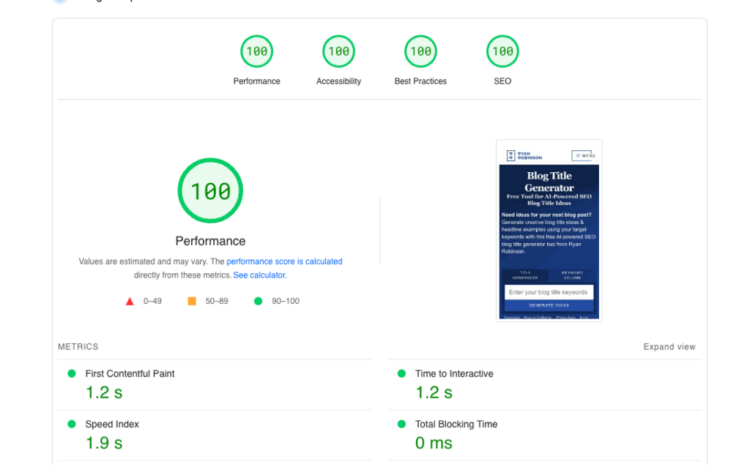
PageSpeed Insights – the tool that helps you improve your website page speed
If you manage an online business, tools like PageSpeed Insights (PSI) and Lighthouse can be valuable for monitoring performance. Measuring, optimizing, and tracking are essential when building modern web experiences.
It is important to accelerate quickly and remain consistent, considering that performance plays a crucial role in the success of any online business. Moreover, who doesn’t want a smooth experience when navigating a site’s menu? Remember that high-performing pages attract and retain users longer than low-performing ones.
PageSpeed Insights – What It Is and How It Helps Us Achieve Performance
Lighthouse provides a comprehensive set of tools that we can use both to maximize results and save time. PageSpeed Insights (PSI) reports page performance on mobile and desktop devices, while also offering suggestions on how to improve it. The tool provides both “lab” (Lighthouse) and “field” data for a given page.
How is the performance score determined?
At the top of the report, PageSpeed Insights provides a score summarizing the page’s performance. This score is determined by running Lighthouse to collect and analyze lab data about the page. A score of 90 or above is considered fast. Between 50 and 90 is considered moderate, and below 50 is slow.
1. Lab Data
Lab data, collected in a controlled environment, gives insights into performance, with device and network settings predefined. It provides reproducible results and debugging capabilities. Moreover, it helps identify, isolate, and fix performance issues.
Advantages:
- Useful for troubleshooting any performance issues;
- End-to-end visibility into the user experience;
- Provides a reproducible environment for testing and debugging.
Limitations:
- May not capture real-world bottlenecks;
- Cannot be directly correlated with actual page KPIs.
2. Field Data
Field data, also known as RUM (Real User Monitoring), consists of performance data collected from actual page loads. These reflect situations naturally experienced by your users.
Advantages:
- Captures the real user experience;
- Allows correlation with the business’s key performance indicators.
Limitations:
- Limited set of metrics;
- Debugging capabilities are limited.
PageSpeed Insights – Performance Metrics
A few years ago, web performance was measured using load events, but this didn’t always align with what users care about. Browser teams have worked on standardizing a new set of metrics and APIs. These new data points more accurately reflect web page performance. To ensure these metrics are relevant to users, they include a few key questions: Is it useful? Is it usable? Is it delightful?
There are many important metrics to calculate. Lighthouse and PageSpeed Insights aim to capture some of the most important ones:
- First Contentful Paint marks when the first text or image appears;
- Time to Interactive represents the time it takes for a page to become fully interactive;
- Speed Index shows how quickly the page’s content becomes visible.
How to Increase Your Website’s Loading Speed
A Google study showed that the average site load time over a 3G connection exceeds 15 seconds. Interestingly, if a site takes more than 3 seconds to load, over half of visitors abandon it. This “rule” applies not only to mobile devices. On a computer, people expect sites to load even faster.
Other studies concluded that for every 0.1 second of load time, a site’s conversion rate drops by 7%. If you don’t want your conversion rate to decrease, here are a few things you can do to improve speed:
Choosing a Good Hosting Plan
Your site is hosted on a server. Simply put, a server is a computer that is permanently connected to the internet. It stores the files that make up your site and “serves” them to users at any time of day or night. The more powerful the server, the faster it can serve the files. The most common hosting types are shared and dedicated hosting. With shared hosting, you share the server with other site owners. Dedicated servers are used only by you.
A good hosting plan combines several elements, from storage space to the number of domains. Another factor to consider is the user’s internet connection. If your users are connected via a slow connection, having an ultra-fast server won’t make a difference. This aspect is beyond your control.
Optimizing Your Site’s HTML Structure
HTML is the code behind a web page. For a site to load quickly, it must be structured in a certain way. To check these issues, you can use two tools: PageSpeed Insights and GT Metrix, where PageSpeed Insights is the official Google tool that considers the following:
- Server response time
We discussed this earlier. You can use Bitcatcha to test server speed. Aim for an average below 200 ms.
Prioritizing Content
Browsers read web pages from top to bottom, so HTML code should load resources for the top part of the site first. For example, if there is a JavaScript resource animating the bottom of the site, it’s not a good idea to place it at the top of the page. The same applies to resource code itself. The order of classes in your CSS file should match the HTML elements they style.
- Proper use of caching
This feature temporarily stores information so it can be accessed faster in the future. The first time you visit a site, loading time is usually higher. There are several types of cache. Additionally, both computer processors and the server have caches. The most important for the user is the web browser.
Once files are cached, the browser doesn’t need to download them again on a second visit. All cached files have an expiration date. If not set, they are deleted after 24 hours. To keep them for a month or even a year, install the W3 Total Cache plugin.
Note: This works only for WordPress sites. Follow instructions for proper configuration. If you’re not using an open-source platform, you can set the expiration date in the .htaccess file (on an Apache server).
- Image Optimization
This step is crucial. Text files are usually small, but images are large, often accounting for over 90% of a page’s size. It’s not recommended to upload a large image and then use CSS to display it smaller.
Ideally, an image should match the size it will be displayed at. For example, if you want to show an image at 250 × 250 pixels, don’t upload it at 300 × 300 pixels. This is challenging for a responsive site but not impossible. You can decide on three sizes (small, medium, large) and use srcset to display them depending on screen resolution. The browser will know which version to load.
Regarding storage, images can be compressed. Compression has an imperceptible effect on clarity but significantly reduces file size. You can use http://tinypng.com to compress images. If using WordPress, the WP Smush plugin can automate this process.
This will automatically optimize new images you upload. Old images can also be optimized, though the free version has some limitations. Improving load speed is a technically essential step in any SEO strategy. Now that you know how to make your site faster, where do you start? For help, contact us directly at agencypixelflow@gmail.com.
